
On this page
- What you will learn
- 1. Create your HTML file
- 2. Read the browser’s user-agent
- 3. Check for iPhone, Android and iPad names
- 4. Add tablet and desktop checks
- 5. Choose a message
- 6. Display the result
- Complete JavaScript device detection example
- Try a small practice task
- Understand the limitation
- Download the project from Playground
- Keep learning
JavaScript Device Detection: A Beginner Example
JavaScript device detection can be a simple exercise for learning how to read a value, check its contents and display a message. In this tutorial, we will use the browser’s user-agent to look for iPhone and Android names, then add simple checks for a possible tablet or desktop computer.
We will use one HTML file. You do not need a framework, a package manager or any external library. You can download the beginner project from Playground and follow along with the code below.
This example is for learning. A user-agent string does not reliably prove which device someone uses, so its result may be wrong. We will keep that limitation visible in our messages.
What you will learn
By the end, you will have used:
constto store values.navigator.userAgentto read a browser string.toLowerCase()to convert text to lowercase..test()to check for a word pattern.ifandelse ifto choose a message.textContentto display text on a page.
1. Create your HTML file
Create a folder called device-detection-basic. Inside it, create a file named index.html.
Start with this page:
<!DOCTYPE html>
<html lang="en">
<head>
  <meta charset="UTF-8">
  <meta name="viewport" content="width=device-width, initial-scale=1.0">
  <title>Check Your Device</title>
</head>
<body>
  <h1>Check Your Device</h1>
  <p id="result">Checking...</p>
</body>
</html>
The paragraph has an id of result. Later, JavaScript will find this paragraph and change its text.
2. Read the browser’s user-agent
Add a <script> element just before </body>. Put the following JavaScript inside it:
const userAgent = navigator.userAgent.toLowerCase();Here is what that line does:
navigator.userAgentreads a string reported by the browser..toLowerCase()changes its letters to lowercase.const userAgentstores the resulting string in a variable calleduserAgent.
Lowercase text lets us check for iphone instead of writing checks for different combinations of uppercase and lowercase letters.
The MDN userAgent documentation explains this property in more detail.
3. Check for iPhone, Android and iPad names
Add these lines next:
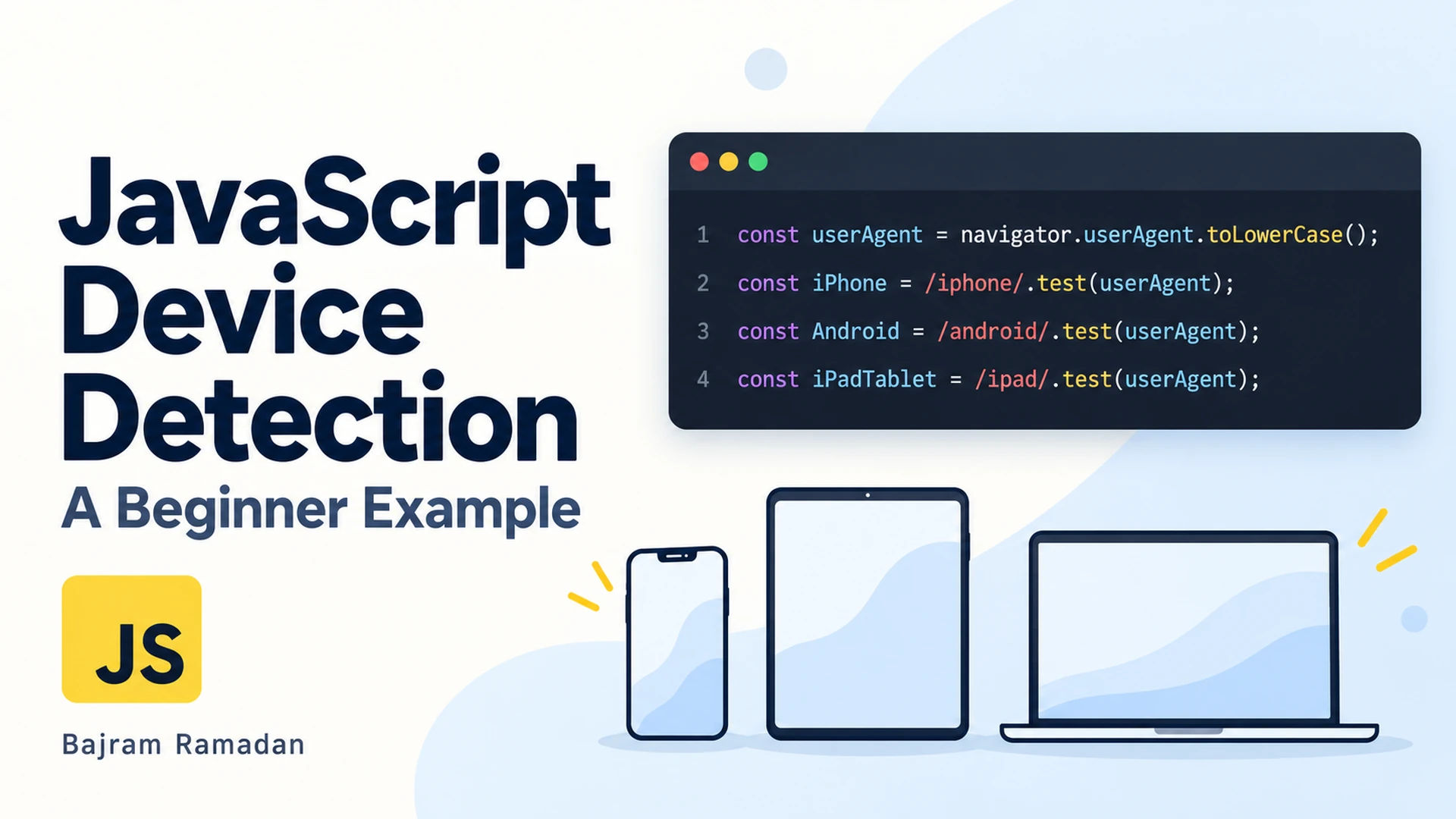
const iPhone = /iphone/.test(userAgent);
const Android = /android/.test(userAgent);
const iPadTablet = /ipad/.test(userAgent);
This keeps the structure of my original example: one user-agent variable and three checks.
The expression /iphone/ is a small regular expression: a pattern that looks for the text iphone. You do not need to learn complex regular expressions to follow this example.
The .test(userAgent) method checks whether the pattern appears in our string. It returns one of two values:
truemeans the pattern was found.falsemeans it was not found.
For example, if the string contains android, the Android variable becomes true.
Notice that all three patterns use lowercase letters. This matches our earlier call to toLowerCase(). JavaScript variable names such as iPhone can still contain uppercase letters; their names do not change the pattern being checked.
4. Add tablet and desktop checks
Keep the original three checks and add these two variables:
const isTablet = iPadTablet || (Android && !/mobile/.test(userAgent));

const isDesktop = /windows|macintosh|linux|x11/.test(userAgent)
  && !iPhone && !Android && !iPadTablet;
Here are the new symbols:
||means or.&&means and.!means not.
The tablet check is true when the string contains ipad, or when it contains android without mobile. This is a common clue, not a guaranteed rule.
The desktop check looks for common operating system names and excludes the iPhone, Android and iPad strings we already recognise. Android user-agents can contain linux, so excluding Android matters.
This check cannot distinguish a desktop computer from a laptop. Also, an iPad reporting a desktop-style user-agent can still receive the desktop result. We will label these results as possibilities.
5. Choose a message
First, create a default message:
let message = "Device type could not be identified.";We use let because the message may change. Add the conditions:
if (iPhone) {
  message = "Your browser's user-agent contains iPhone.";
} else if (isTablet) {
  message = "Possible tablet (iPad or Android tablet).";
} else if (Android) {
  message = "Possible Android phone.";
} else if (isDesktop) {
  message = "Possible desktop or laptop computer.";
}
JavaScript checks the conditions from top to bottom. Once it finds a match, it skips the remaining branches.
Check tablets before the general Android branch. Otherwise an Android tablet would reach the Android message first.
If no check matches, the default message stays in place. We do not assume that every unrecognised browser belongs to a desktop computer.
6. Display the result
Finally, add this line:
document.getElementById("result").textContent = message;document.getElementById("result") finds our paragraph. The .textContent property replaces its text with the message we selected.
Because the script comes after the paragraph in the HTML, that element is available when the script runs.
Complete JavaScript device detection example
Here is the full project. Copy it into index.html, save the file and open it in your browser.
<!DOCTYPE html>
<html lang="en">
<head>
  <meta charset="UTF-8">
  <meta name="viewport" content="width=device-width, initial-scale=1.0">
  <title>Check Your Device</title>
</head>
<body>
  <h1>Check Your Device</h1>
  <p>This beginner example looks for device names in your browser's user-agent.</p>

  <!-- JavaScript will put the result inside this paragraph. -->
  <p id="result">Checking...</p>

  <p>Note: This is a simple learning example. The result may be incorrect.</p>

  <script>
    // Get the browser's user-agent and make all letters lowercase.
    const userAgent = navigator.userAgent.toLowerCase();

    // Check whether the string contains these names.
    const iPhone = /iphone/.test(userAgent);
    const Android = /android/.test(userAgent);
    const iPadTablet = /ipad/.test(userAgent);

    // Android without "mobile" is often a tablet.
    const isTablet = iPadTablet || (Android && !/mobile/.test(userAgent));

    // Look for common desktop operating system names.
    const isDesktop = /windows|macintosh|linux|x11/.test(userAgent)
      && !iPhone && !Android && !iPadTablet;

    // Start with a message for browsers that do not match.
    let message = "Device type could not be identified.";

    // Choose a message based on the first match.
    if (iPhone) {
      message = "Your browser's user-agent contains iPhone.";
    } else if (isTablet) {
      message = "Possible tablet (iPad or Android tablet).";
    } else if (Android) {
      message = "Possible Android phone.";
    } else if (isDesktop) {
      message = "Possible desktop or laptop computer.";
    }

    // Show the message on the page.
    document.getElementById("result").textContent = message;
  </script>
</body>
</html>
Try a small practice task
Change the iPhone message to your own sentence. Save the file and reload the page.
If your browser does not report an iPhone string, you can temporarily replace the first JavaScript line with this test value:
const userAgent = "iphone";Now the iPhone branch will run. Try these sample values too:
| Sample string | Expected message |
|---|---|
"android mobile" |
Possible Android phone |
"android" |
Possible tablet |
"ipad" |
Possible tablet |
"windows" |
Possible desktop or laptop |
"macintosh" |
Possible desktop or laptop |
"example" |
Device type could not be identified |
This tests your conditions with sample text; it does not simulate a real device.
After practising, restore the original line:
const userAgent = navigator.userAgent.toLowerCase();Understand the limitation
This example detects text, not verified hardware. Browsers can change or disguise their user-agent, and some iPads can report a desktop-style string. The Android tablet rule is only a heuristic, and desktop operating system names do not distinguish a laptop from a desktop. These guesses must not control access to content.
For a responsive layout, use CSS media queries. When you need a browser feature, check whether that feature exists. You can read more in MDN’s guide to user-agent detection.
The purpose of this small project is to practise variables, conditions and updating a page with JavaScript.
Download the project from Playground
The complete beginner project is available in my Playground as Basic JavaScript Device Detection.
Open Basic JavaScript Device Detection in Playground
Find the experiment and click Download ZIP. Extract the ZIP on your computer, open the device-detection-basic folder and double-click index.html to run the example in your browser.
You can then change the sample messages, save the file and reload the page to see what happens. No installation or build step is needed.
If you get an unexpected result, return to the limitation section above. The example makes simple guesses from a browser string; it does not verify the hardware.
Keep learning
To practise structuring the page around your JavaScript, read my practical guide to semantic HTML. You can also explore more experiments in Playground.
ARTICLE FEEDBACK
Was this article helpful?
Your feedback helps me improve future tutorials.
Rate this article
Starting the form stores a browser identifier for one year so you can update or delete your vote. Feedback is anonymous; please do not include personal information.
These scores reflect reader opinions, not an objective readability or accuracy test.